Seed Buddy Support
NFC Plant Labels & Seed Trays
How It Works
Seed Buddy has three tabs at the bottom of the screen: Plants, Trays, and Scan. Here's how to use each one.
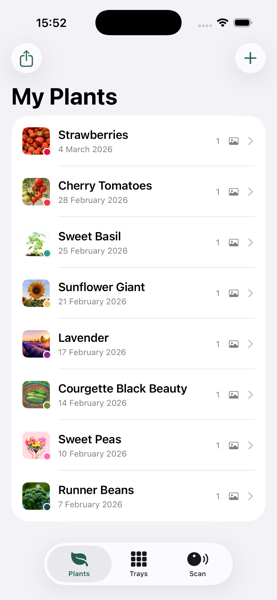
1. Create Your Plants
Tap the + button on the Plants tab to add a new plant. Give it a name, pick a colour, take photos of seed packets or labels with your camera, and add any notes you like — sowing dates, watering schedules, variety names, anything useful.
Your plants appear in a list with photo thumbnails and colour dots so you can find them at a glance.
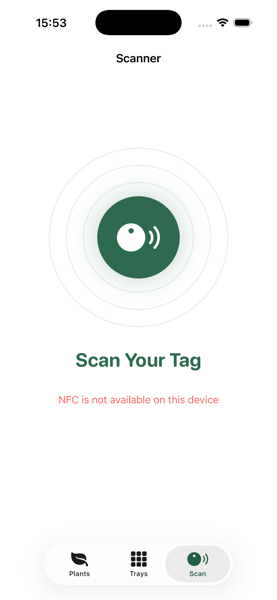
2. Write & Scan NFC Tags
From any plant's detail screen, tap Write NFC Tag. Hold a blank NFC sticker near the top of your iPhone — Seed Buddy writes the plant's identity to the tag instantly. You can write as many tags as you need for the same plant.
Later, go to the Scan tab and hold your phone near any tag. The plant's full profile appears immediately — photos, notes, everything. Perfect for walking around the garden.
Tip: NTAG215 stickers are cheap and widely available online. Look for waterproof ones for outdoor use.
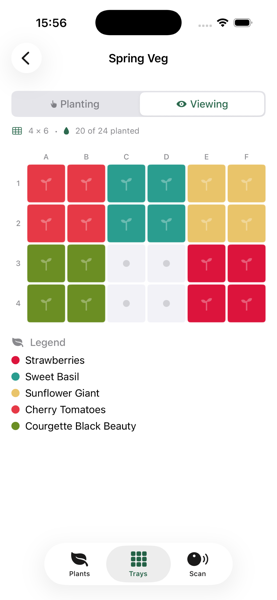
3. Plan Your Seed Trays
Tap the Trays tab, then + to create a new tray. Choose how many rows and columns you need.
Switch to Planting mode and tap any cell to assign a plant. Each plant gets its own colour, so you can see at a glance what's growing where. A legend below the grid shows which colour belongs to which plant.
Use the + and − buttons to add or remove rows and columns as your plans change.
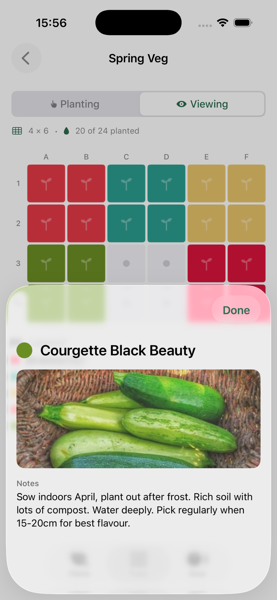
4. View Plant Details in Trays
Switch to Viewing mode and tap any cell to see the plant's photo and notes right there in the tray view. No need to leave the screen — just tap a cell to remind yourself what's planted.
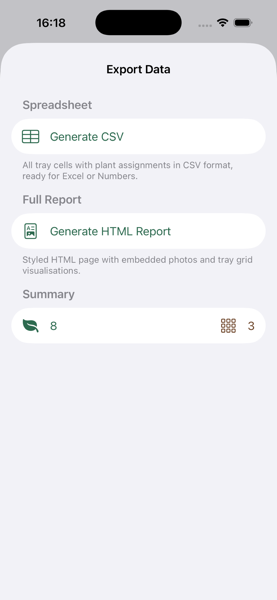
5. Export Your Collection
Tap the share icon on the Plants tab to export your data:
- CSV — A spreadsheet of all tray cells with tray name, plant, notes, row, and column. Open in Excel, Numbers, or Google Sheets.
- HTML Report — A beautifully styled page with embedded photos and colour-coded tray grids. Great for printing or emailing.
Share via email, AirDrop, or save to Files.
Frequently Asked Questions
What NFC tags do I need?
Any NDEF-writable NFC tag works. NTAG215 stickers are cheap (a few pence each) and widely available online. For outdoor use, look for waterproof NFC stickers — they'll survive rain, frost, and UV without fading like paper labels.
Which iPhones support NFC?
NFC tag reading and writing requires iPhone 7 or later running iOS 17 or newer.
Can I write the same plant to multiple tags?
Yes! After writing one tag, the NFC session stays open. Just tap another sticker to write it too. A counter shows how many tags you've written. Use this to label multiple pots, beds, or seed packets with the same plant.
What happens if I delete a plant?
The plant is removed from your collection and any seed tray cells it was assigned to. Existing NFC tags will still contain the plant's ID, but scanning them will show “Plant Not Found”.
Is my data backed up?
Seed Buddy stores all data locally on your device. Your data is included in your standard iPhone backup (iCloud or computer). We also recommend using the Export feature regularly to save a CSV or HTML copy of your collection.
Does the app need an internet connection?
No. Seed Buddy works entirely offline. No account, no cloud, no internet required. Your data never leaves your device.
How do I add or remove rows and columns from a tray?
Open a tray and look for the + and − buttons below the grid. Tap + Row or + Column to add, or the minus buttons to remove the last row or column. You can't remove the last remaining row or column.
Can I use Seed Buddy without NFC tags?
Absolutely. NFC tagging is optional. You can use Seed Buddy purely as a plant notebook and seed tray planner without ever touching an NFC sticker.
Contact
For bug reports, feature requests, or any questions:
Email: seedbuddy@teamstrobel.org
Privacy Policy